> ## Documentation Index
> Fetch the complete documentation index at: https://docs.getvirtualbrain.com/llms.txt
> Use this file to discover all available pages before exploring further.
# App Blocks
> The anatomy of a block: knowledge sources, instructions, options, statuses, and the dependency order blocks run in
A block is one step of an App, and every block has the same anatomy: what it draws on, what it does, and how it behaves in the session. Understanding blocks lets you follow a run with confidence, and explains how one App can chain your input, your firm's knowledge, and the web into a single deliverable.
## Anatomy of a block
Every block is defined by three things:
| Element | What it defines |
| ----------------------- | ----------------------------------------------------------------------------------------------------------------------------------------------------------- |
| **Knowledge Source(s)** | What the block works from: user inputs, [Brains](/features/brains/overview) or specific files within a Brain, a web search, or the output of earlier blocks |
| **Instructions** | The prompt the block executes. Type `/` to insert a variable |
| **Options** | Show the block in the session; add a review step |
### `/` variables vs. knowledge sources
There are two ways to reference information in a block, and the choice decides whether the App holds up:
* **The `/` command injects content directly into the prompt**, exactly as written: a user input or an earlier block's output. Use it for short, targeted content (up to roughly 1,000 words): a company name, a project brief, evaluation criteria, or instructions generated by a previous block.
* **A knowledge source is retrieved from, not injected.** Attach long documents, research reports, datasets, or lengthy block outputs as knowledge sources, and the block searches them for only what it needs. Most content belongs here.
The [Academy](/apps-academy/knowledge-sources) goes deep on inline vs. retrieval, and on [passing data safely between blocks](/apps-academy/passing-data).
The most common App-building mistake is injecting large content into the prompt with `/`. A 10,000-word research output pasted mid-prompt creates noise and breaks the instruction. Attach it as a knowledge source instead, and use `/` for the short brief that tells the block what to look for in it.
## Block statuses
During a run, every block carries a live status, so you always know where the App is.
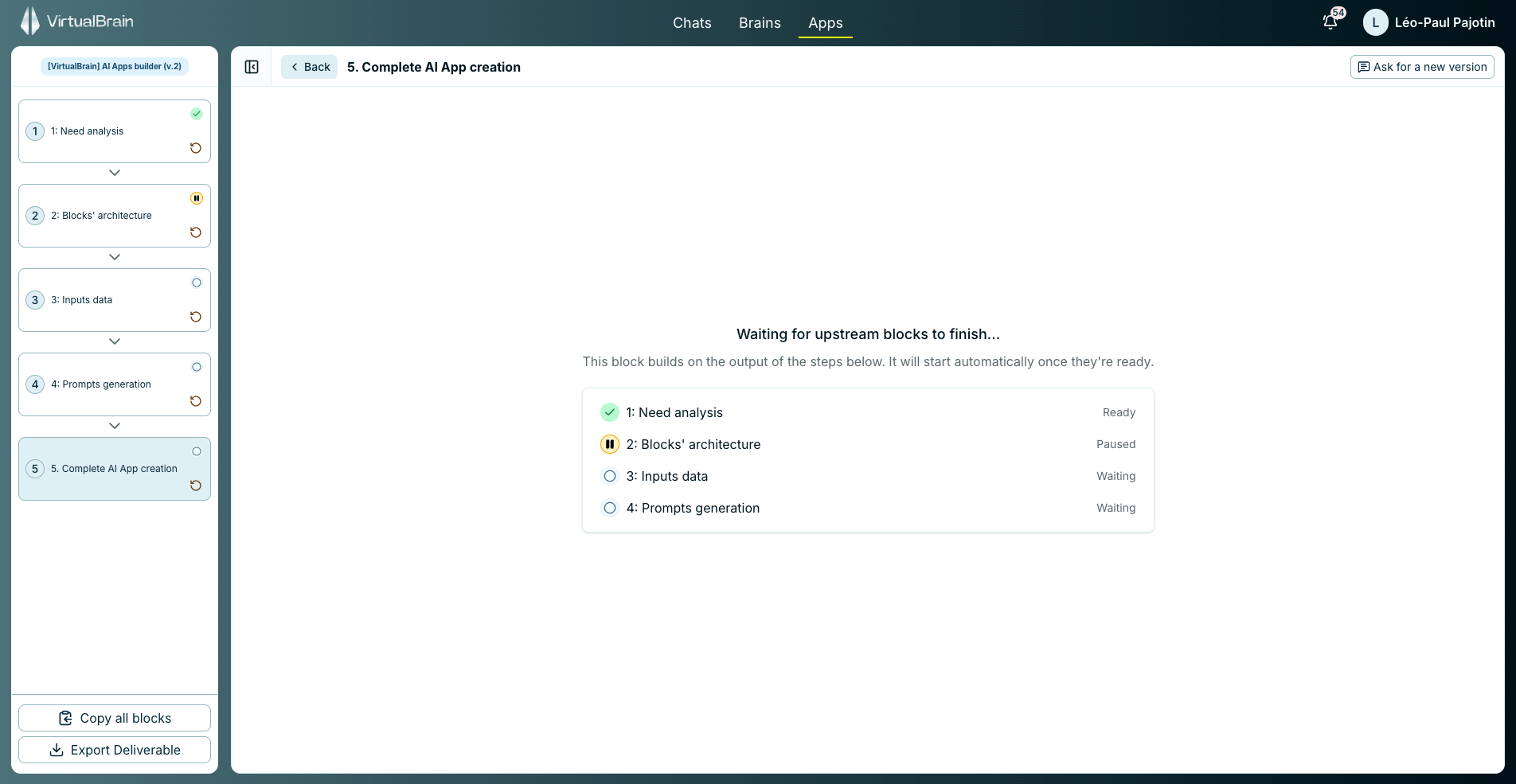
| Status | Meaning |
| -------------- | ---------------------------------- |
| **Waiting** | Not started yet |
| **Generating** | The block is producing its output |
| **Ready** | The block's output is complete |
| **Paused** | Stopped for your review |
| **Failed** | Something went wrong in this block |
When a block pauses for review, read the output, edit it if needed, then click **Continue** to release the blocks downstream. See [Reviewing & Exporting](/features/apps/reviewing-and-exporting) for the full review flow.
## Blocks run in dependency order
Blocks run in dependency order rather than strictly top to bottom: each one starts as soon as the blocks it builds on are ready. Open a block that hasn't started yet and VirtualBrain shows the upstream blocks it is waiting on, each clickable, so you can jump straight to one and follow the chain.
## Why this matters
Because each block can draw on a different source, a single App can move from the user's input, to your internal knowledge, to a web search, each block building on the ones before it. All of this is preset by the App's author, so at run time only the user's input changes: the method, sources, and structure stay constant on every run.
## Related
Configure knowledge sources, instructions, and review steps per block.
What to do when a block pauses, and how the deliverable leaves VirtualBrain.
The full course on designing, prompting, and shipping reliable Apps.
 ## Why this matters
Because each block can draw on a different source, a single App can move from the user's input, to your internal knowledge, to a web search, each block building on the ones before it. All of this is preset by the App's author, so at run time only the user's input changes: the method, sources, and structure stay constant on every run.
## Related
## Why this matters
Because each block can draw on a different source, a single App can move from the user's input, to your internal knowledge, to a web search, each block building on the ones before it. All of this is preset by the App's author, so at run time only the user's input changes: the method, sources, and structure stay constant on every run.
## Related