> ## Documentation Index
> Fetch the complete documentation index at: https://docs.getvirtualbrain.com/llms.txt
> Use this file to discover all available pages before exploring further.
# Cloud Storage Connectors
> Sync SharePoint, OneDrive, Google Drive, and Dropbox folders into a Brain, with source permissions preserved
Most engagement files already sit in SharePoint, OneDrive, Google Drive, or Dropbox. Rather than re-uploading them, connect the source directly to a Brain: VirtualBrain syncs the documents you choose and respects the permissions they already carry.
## Why connect rather than upload
A connected source keeps your Brain aligned with the current state of the data room. As an engagement progresses, the source can be re-synced to pull in the latest versions and new files, with no manual re-uploading. Once synced, every document behaves like any other file in the Brain: processed, searchable, and citable.
## Supported sources
VirtualBrain connects to the cloud storage where engagement files already live. You pick exactly what to bring in, and source permissions are preserved on every one.
| Source | What you can sync |
| ---------------- | ----------------------------------------------- |
| **OneDrive** | Folders and individual files from your OneDrive |
| **SharePoint** | Sites, document libraries, folders, and files |
| **Google Drive** | My Drive, shared items, and shared drives |
| **Dropbox** | Folders, plus shared and team folders |
Your VirtualBrain team sets up connectors with your IT during onboarding. Day to day, you just choose which folders to sync into each Brain.
## Connect a source to a Brain
Integrations are connected per-Brain, so each engagement pulls only the content it should.
Choose OneDrive, SharePoint, Google Drive, or Dropbox from the picker.
Sign in to the provider and authorize VirtualBrain. You'll only ever be able to reach content your own account already has access to.
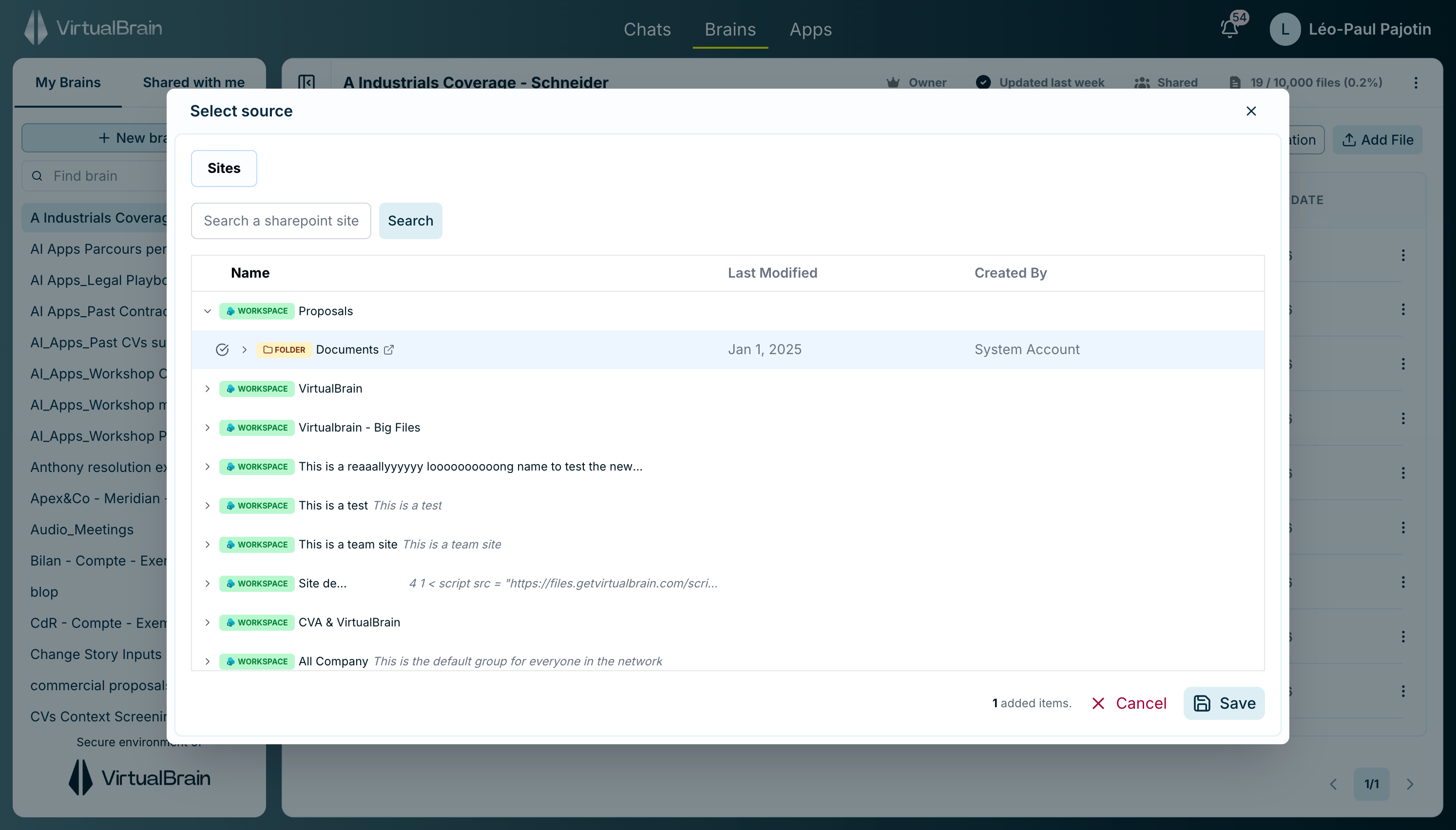
Browse your drives, sites, and folders, and pick the specific items to bring in: a whole folder, a document library, or individual files.
VirtualBrain imports and processes the selected content; the bell notifies you when the sync completes. From there it behaves like any other document.
 **Permission mirroring:** VirtualBrain mirrors the access rules of the source system. If a colleague can't open a folder in SharePoint, they can't see its contents through VirtualBrain either. Client-confidential boundaries you've already set are preserved automatically, and nothing is widened by syncing.
## How re-syncing works
VirtualBrain keeps the connection live and automatically notices files you add to or remove from a synced folder. It will not re-import the new content of a document you have edited, however, until you run a **Force update** or turn on **Auto Update** for that integration.
## Manage an integration
Open a connected integration from inside the Brain for its controls:
| Control | What it does |
| -------------------------- | ----------------------------------------- |
| **Auto Update** | Refreshes changed files automatically |
| **Force an update** | Re-pulls everything now |
| **Integration Statistics** | Shows what the integration has brought in |
| **Delete** | Removes the integration |
Your administrator may restrict which integration sources are available to the firm through an allow-list. See [Integrations Whitelist & Blacklist](/features/admin-dashboard/integrations-whitelist-blacklist).
## Best practices
Be deliberate about which folders you bring in. A Brain gives its best answers when it holds documents that genuinely belong together, so sync the engagement folder, not the entire drive. Large syncs can take several minutes; the notifications bell tells you when processing is done.
## Related
* [Web Capture](/features/brains/web-capture): for content that lives on the web rather than in cloud storage
* [Organizing Documents](/features/brains/organizing-documents): track processing status after a sync
* [Single sign-on](/introduction/security-and-compliance): how VirtualBrain authenticates your work account
**Permission mirroring:** VirtualBrain mirrors the access rules of the source system. If a colleague can't open a folder in SharePoint, they can't see its contents through VirtualBrain either. Client-confidential boundaries you've already set are preserved automatically, and nothing is widened by syncing.
## How re-syncing works
VirtualBrain keeps the connection live and automatically notices files you add to or remove from a synced folder. It will not re-import the new content of a document you have edited, however, until you run a **Force update** or turn on **Auto Update** for that integration.
## Manage an integration
Open a connected integration from inside the Brain for its controls:
| Control | What it does |
| -------------------------- | ----------------------------------------- |
| **Auto Update** | Refreshes changed files automatically |
| **Force an update** | Re-pulls everything now |
| **Integration Statistics** | Shows what the integration has brought in |
| **Delete** | Removes the integration |
Your administrator may restrict which integration sources are available to the firm through an allow-list. See [Integrations Whitelist & Blacklist](/features/admin-dashboard/integrations-whitelist-blacklist).
## Best practices
Be deliberate about which folders you bring in. A Brain gives its best answers when it holds documents that genuinely belong together, so sync the engagement folder, not the entire drive. Large syncs can take several minutes; the notifications bell tells you when processing is done.
## Related
* [Web Capture](/features/brains/web-capture): for content that lives on the web rather than in cloud storage
* [Organizing Documents](/features/brains/organizing-documents): track processing status after a sync
* [Single sign-on](/introduction/security-and-compliance): how VirtualBrain authenticates your work account