> ## Documentation Index
> Fetch the complete documentation index at: https://docs.getvirtualbrain.com/llms.txt
> Use this file to discover all available pages before exploring further.
# Organizing Documents
> Track processing status, search and filter a Brain's contents, describe it for colleagues, and audit what's inside
Know exactly what's in a Brain and whether it's ready to query. After you add content, VirtualBrain processes each file (reading, classifying, and indexing it so it can be searched and cited) and gives you the controls to keep the Brain organized as it grows.
## Processing and status
The **Status** column shows **Processed** once a file is ready, which takes seconds to a few minutes depending on size. You don't have to watch it: the notifications bell tells you when an upload, a web scrape, or an integration sync has finished.
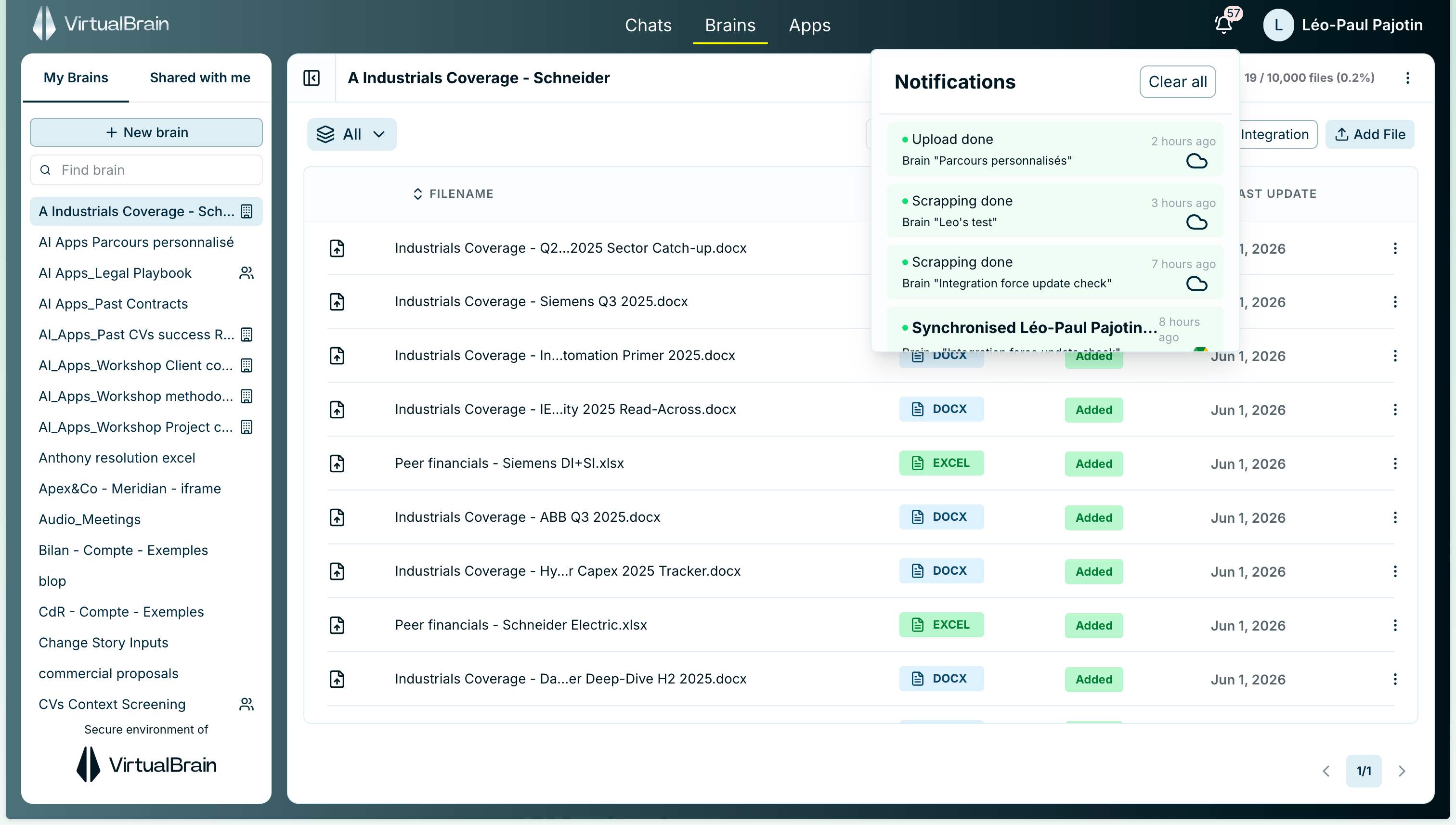 **Be selective with large syncs.** Syncing a big SharePoint or OneDrive can take several minutes, sometimes longer, depending on how much you select. Mixing many unrelated files also dilutes answer quality; see [Cloud Storage Connectors](/features/brains/connectors) for what to bring in.
## Find what's inside
Three controls keep even a large Brain navigable:
* **Search by name**: type in the search box to jump straight to a file.
* **Filter by status**: the filter button narrows the table to documents that are **Processed**, **Processing**, **Waiting**, or **Failed**.
* **Sort by column**: click any column header (**Filename**, **Type**, **Status**, **Last update**).
## Describe your Brain
Open the three-dots menu at the top-right of a Brain to give it a description. This matters as soon as you share: colleagues who don't have full access see only the Brain's title, its owner, the number of documents it holds, and this description. A clear description explains what the Brain is for and what kind of documents are inside, which the title alone rarely conveys.
## Brain statistics
From the same three-dots menu you can open the Brain's statistics: a clear breakdown of everything VirtualBrain has processed, ignored, or failed to process, with the reason in each case. It's the quickest way to confirm the documents you expected are actually in the Brain, and to spot anything that needs re-uploading.
## Manage and delete
From inside a Brain you can remove individual documents as engagements evolve, keeping the evidence base current.
Deleting a Brain is permanent, and it also removes the deliverables stored inside it.
## Related
* [Creating Brains](/features/brains/creating-brains): the four ways to add content
* [Sharing Brains](/features/brains/sharing-brains): what colleagues see, and who can manage contents
* [Cloud Storage Connectors](/features/brains/connectors): managing synced integrations
**Be selective with large syncs.** Syncing a big SharePoint or OneDrive can take several minutes, sometimes longer, depending on how much you select. Mixing many unrelated files also dilutes answer quality; see [Cloud Storage Connectors](/features/brains/connectors) for what to bring in.
## Find what's inside
Three controls keep even a large Brain navigable:
* **Search by name**: type in the search box to jump straight to a file.
* **Filter by status**: the filter button narrows the table to documents that are **Processed**, **Processing**, **Waiting**, or **Failed**.
* **Sort by column**: click any column header (**Filename**, **Type**, **Status**, **Last update**).
## Describe your Brain
Open the three-dots menu at the top-right of a Brain to give it a description. This matters as soon as you share: colleagues who don't have full access see only the Brain's title, its owner, the number of documents it holds, and this description. A clear description explains what the Brain is for and what kind of documents are inside, which the title alone rarely conveys.
## Brain statistics
From the same three-dots menu you can open the Brain's statistics: a clear breakdown of everything VirtualBrain has processed, ignored, or failed to process, with the reason in each case. It's the quickest way to confirm the documents you expected are actually in the Brain, and to spot anything that needs re-uploading.
## Manage and delete
From inside a Brain you can remove individual documents as engagements evolve, keeping the evidence base current.
Deleting a Brain is permanent, and it also removes the deliverables stored inside it.
## Related
* [Creating Brains](/features/brains/creating-brains): the four ways to add content
* [Sharing Brains](/features/brains/sharing-brains): what colleagues see, and who can manage contents
* [Cloud Storage Connectors](/features/brains/connectors): managing synced integrations