> ## Documentation Index
> Fetch the complete documentation index at: https://docs.getvirtualbrain.com/llms.txt
> Use this file to discover all available pages before exploring further.
# Refining & Exporting
> Shape the deliverable in place, then export it in the format your engagement needs
A deliverable is a draft you can shape, not a final you have to accept. Open its side panel and revise it in place (targeted edits, deeper research, follow-up questions) before you export anything. This is where a sourced answer becomes a client-ready output.
## Refine & follow up
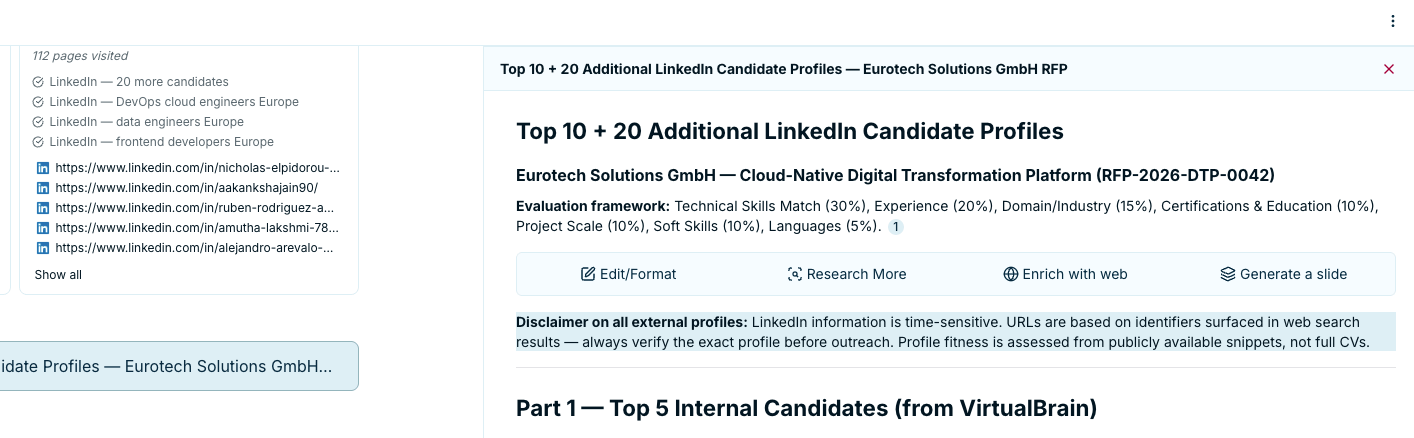
* **Edit a section**: Select a specific passage and tell VirtualBrain what to change. Reformat it (**Edit / Format**), pull more detail from your documents (**Research more**), or search the web to cross-check a figure (**Enrich with web**).
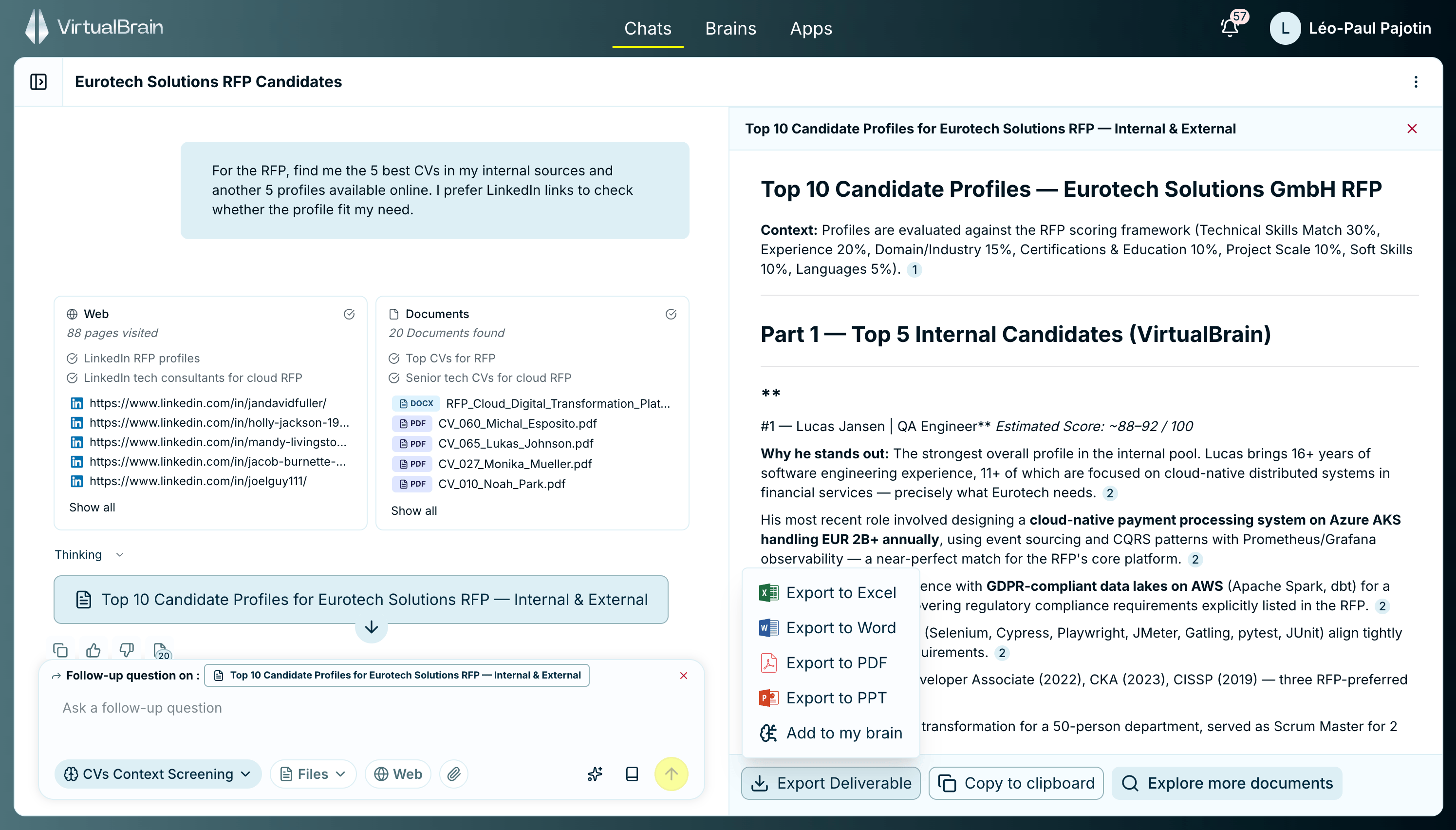
* **Follow-up questions**: With the deliverable's side panel open, ask a follow-up on it directly and VirtualBrain iterates from it, so you can drill down without starting over. See [what carries across turns](/features/chats/asking-questions#what-carries-across-turns).
* **Rate & copy**: Give a thumbs up or down on any answer to improve future results, or copy it with one click.
* **History**: Every chat is saved automatically. Reopen a previous conversation from the sidebar (grouped by week and month) exactly where you left off, which is useful when an engagement runs over weeks.
Treat the first answer as a draft, not a verdict. Open a citation or two, confirm the numbers, then refine the parts you'd phrase differently. With sources one click away, a thorough review takes minutes, not the afternoon it used to.
## Export & save
When the deliverable is ready, turn it into the output your engagement needs. From the deliverable you can:
* **Export Deliverable** to Word, PDF, Excel, or PowerPoint.
* **Generate a slide** from a section, built on a template you pick. See [Personal Slide Templates](/features/personalization/document-templates) for your own decks and [Slide Templates](/features/admin-dashboard/slide-templates) for firm-wide ones.
* **Add to my brain** to save it back as a deliverable, alongside the source evidence.
* Copy to clipboard.
## Related features
How citations work and how to verify a claim side by side with its source.
Ground the next question in the right Brains and files.
 ## Related features