> ## Documentation Index
> Fetch the complete documentation index at: https://docs.getvirtualbrain.com/llms.txt
> Use this file to discover all available pages before exploring further.
# Personalization
> Manage your profile, memory, and account settings so VirtualBrain produces work that already looks and sounds like yours
Small settings make VirtualBrain produce work that already looks and sounds like yours. Click your name in the top-right, open **Settings**, and manage your profile and how VirtualBrain works for you. Once set, every conversation and every generated deliverable starts from your context instead of a blank slate.
## The account menu
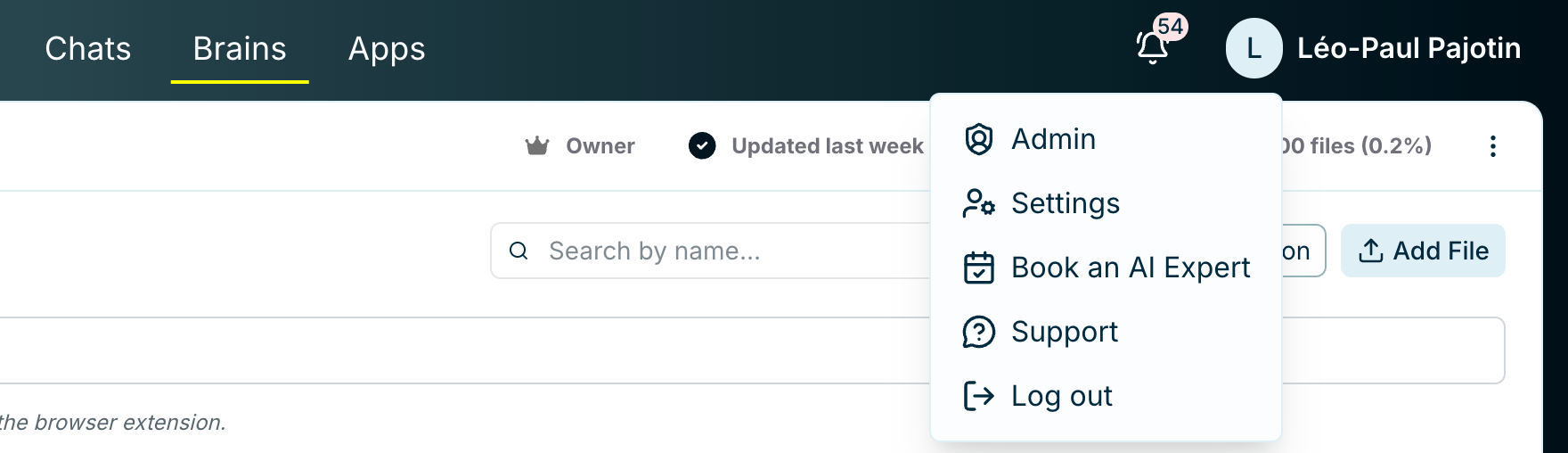
Clicking your name in the top-right opens a menu that holds everything outside the three main areas:
| Menu entry | What it does |
| --------------------- | ------------------------------------------------------------------------------------------------------ |
| **Admin** | The [Admin Dashboard](/features/admin-dashboard/overview), for workspace administrators. |
| **Settings** | Opens its own panel, covered below. |
| **Book an AI Expert** | Schedule time with the VirtualBrain deployment team to build a new use case or work through a problem. |
| **Support** | Send a message straight to the product and engineering team when something isn't working. |
| **Log out** | Sign out of VirtualBrain. |
 ## Inside Settings
**Settings** opens its own panel with four sections in the left sidebar:
| Section | What it holds |
| ------------------------------ | ------------------------------------------------------------------------------------ |
| **User settings** | Your display name and personal details. |
| **Slide templates** | Your own PowerPoint decks, ready to generate slides on. |
| **Custom Memory Instructions** | Standing context for your Chat answers, plus your firm's, which applies in Apps too. |
| **Memory Insights** | What VirtualBrain has remembered about how you work. |
### User settings
Update your display name and personal details so your activity and shared work are clearly attributed across the platform. Clear attribution matters once Brains and Apps circulate across teams: colleagues should know exactly whose analysis they're building on.
### Memory Insights
VirtualBrain remembers context and preferences about how you like to work, so you don't have to restate them in every conversation. Review what it has remembered, and add or remove entries, from **Memory Insights**.
You stay in control of what persists. If a remembered preference no longer reflects how you work, remove it from Memory Insights.
## Tailor it further
Two settings do most of the personalization work: standing context for your answers, and your own deck for every generated slide.
Your role, working context, and preferred style, applied to every Chat answer, plus firm-wide rules set by an administrator that apply in Apps as well.
Upload your own PowerPoint decks and pick one whenever you generate slides.
## Inside Settings
**Settings** opens its own panel with four sections in the left sidebar:
| Section | What it holds |
| ------------------------------ | ------------------------------------------------------------------------------------ |
| **User settings** | Your display name and personal details. |
| **Slide templates** | Your own PowerPoint decks, ready to generate slides on. |
| **Custom Memory Instructions** | Standing context for your Chat answers, plus your firm's, which applies in Apps too. |
| **Memory Insights** | What VirtualBrain has remembered about how you work. |
### User settings
Update your display name and personal details so your activity and shared work are clearly attributed across the platform. Clear attribution matters once Brains and Apps circulate across teams: colleagues should know exactly whose analysis they're building on.
### Memory Insights
VirtualBrain remembers context and preferences about how you like to work, so you don't have to restate them in every conversation. Review what it has remembered, and add or remove entries, from **Memory Insights**.
You stay in control of what persists. If a remembered preference no longer reflects how you work, remove it from Memory Insights.
## Tailor it further
Two settings do most of the personalization work: standing context for your answers, and your own deck for every generated slide.
Your role, working context, and preferred style, applied to every Chat answer, plus firm-wide rules set by an administrator that apply in Apps as well.
Upload your own PowerPoint decks and pick one whenever you generate slides.