> ## Documentation Index
> Fetch the complete documentation index at: https://docs.getvirtualbrain.com/llms.txt
> Use this file to discover all available pages before exploring further.
# Getting Started
> Sign in, get your bearings, and go from a blank workspace to your first sourced answer
## Signing in
Go to [app.getvirtualbrain.com](https://app.getvirtualbrain.com/auth/login) in any modern browser (Google Chrome recommended). There's no firm-specific URL to track down.
Type your work email address and click **Continue**. VirtualBrain routes you to your firm's sign-in method, whether that's [single sign-on](/introduction/security-and-compliance) with your Google or Microsoft work account or an email and password. Tick **Remember me** to stay signed in on that browser.
If you don't have access yet, contact your VirtualBrain administrator or email [kata@getvirtualbrain.com](mailto:kata@getvirtualbrain.com).
The first time you sign in, a short onboarding introduces Brains, Chat, Apps, and the browser extension.
## A tour of the interface
Every screen shares the same frame:
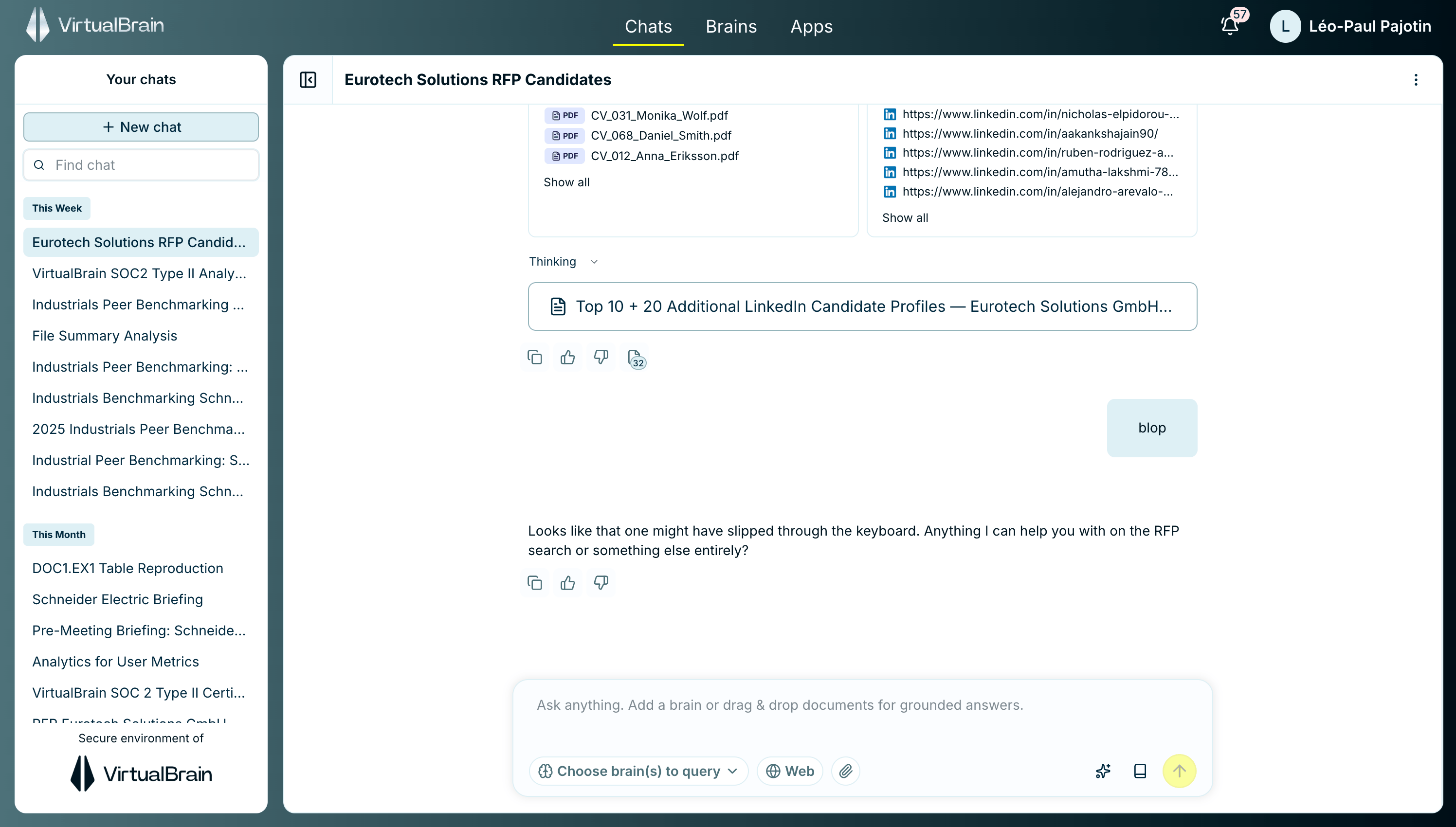 * **Top navigation**: The three main areas, **Chats**, **Brains**, and **Apps**, sit in the center of the top bar and are always one click away.
* **Contextual sidebar**: The left panel changes with the area you're in: your chat history, your list of Brains, or your App sessions and library.
* **Account & notifications**: Top-right, the bell shows processing updates, and clicking your name opens the account menu.
### The account menu
Clicking your name in the top-right opens the account menu: the [Admin Dashboard](/features/admin-dashboard/overview) (administrators only), **Settings**, **Book an AI Expert**, **Support**, and **Log out**.
**Settings** opens its own panel, holding your profile, slide templates, and what VirtualBrain remembers about how you work. See [Personalization](/features/personalization/overview) for both the menu and the panel.
## Your first 5 minutes
Three steps take you from nothing to a sourced answer. The [Quickstart](/introduction/quickstart) walks through each one:
1. **Create a Brain and add a document**: Go to **Brains**, click **New brain**, name it after the engagement, then drag in a document or two.
2. **Ask your first question**: Open Chats, choose your new Brain, and ask something specific.
3. **Run your first App**: From Apps, pick a pre-built workflow such as a due-diligence summary and let it produce a finished draft.
Don't overthink your first Brain. Pick one live engagement, drop in a handful of documents, and ask a real question you already know the answer to. It's the quickest way to build trust in the citations.
* **Top navigation**: The three main areas, **Chats**, **Brains**, and **Apps**, sit in the center of the top bar and are always one click away.
* **Contextual sidebar**: The left panel changes with the area you're in: your chat history, your list of Brains, or your App sessions and library.
* **Account & notifications**: Top-right, the bell shows processing updates, and clicking your name opens the account menu.
### The account menu
Clicking your name in the top-right opens the account menu: the [Admin Dashboard](/features/admin-dashboard/overview) (administrators only), **Settings**, **Book an AI Expert**, **Support**, and **Log out**.
**Settings** opens its own panel, holding your profile, slide templates, and what VirtualBrain remembers about how you work. See [Personalization](/features/personalization/overview) for both the menu and the panel.
## Your first 5 minutes
Three steps take you from nothing to a sourced answer. The [Quickstart](/introduction/quickstart) walks through each one:
1. **Create a Brain and add a document**: Go to **Brains**, click **New brain**, name it after the engagement, then drag in a document or two.
2. **Ask your first question**: Open Chats, choose your new Brain, and ask something specific.
3. **Run your first App**: From Apps, pick a pre-built workflow such as a due-diligence summary and let it produce a finished draft.
Don't overthink your first Brain. Pick one live engagement, drop in a handful of documents, and ask a real question you already know the answer to. It's the quickest way to build trust in the citations.