

Prerequisites
- A VirtualBrain account (send us an email)
- At least one document to upload (PDF, docx, pptx, xlsx, img or audio files)
Not set up yet? Email kata@getvirtualbrain.com. Every engagement starts with a structured pilot on your own documents and workflows.
Step 1: Create a Brain & Upload documents
A Brain is a secure knowledge repository. Think of it as a dedicated workspace for a specific engagement or topic.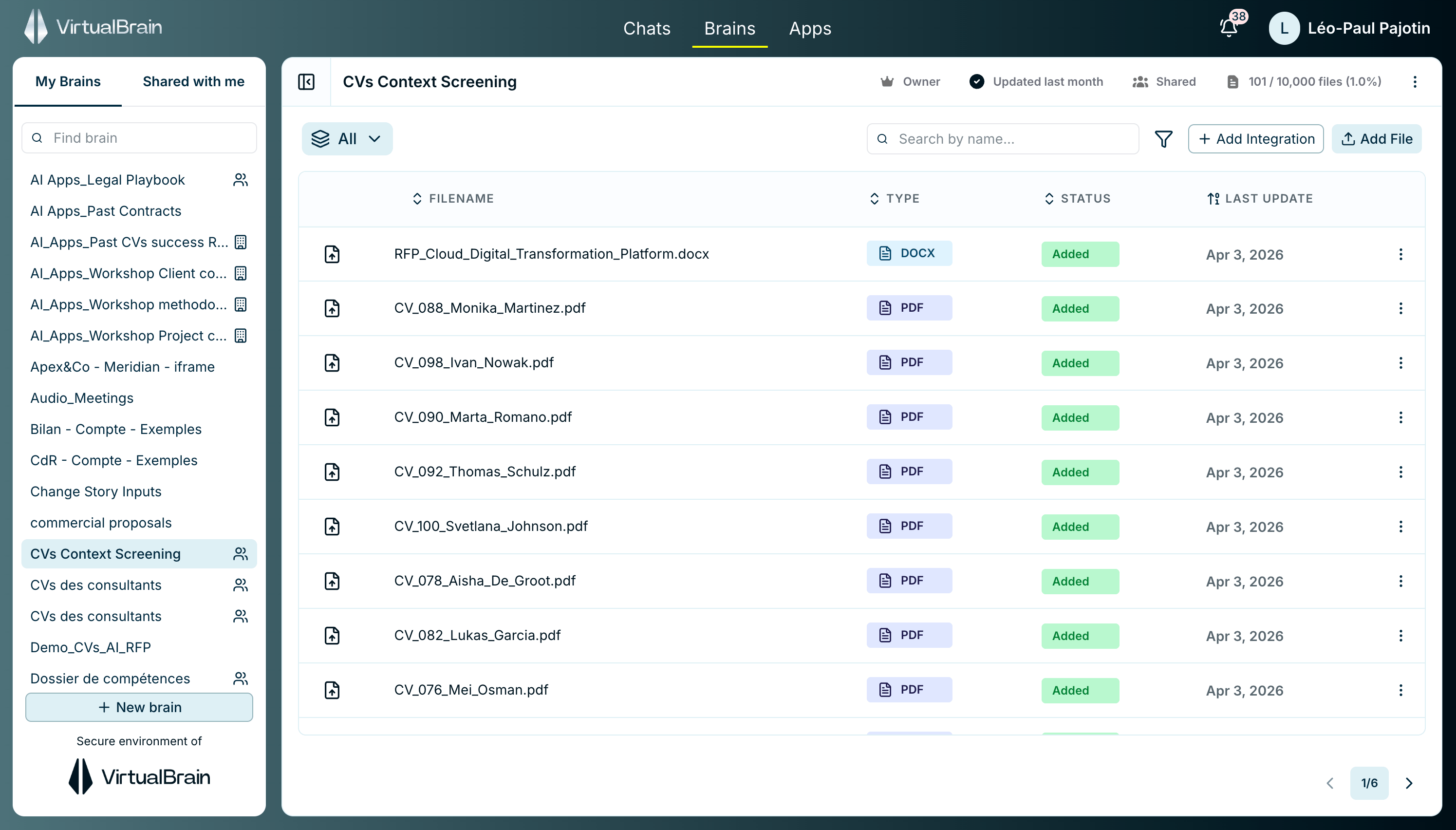
1
Navigate to Brains
From the homepage, click on Brains
2
Create new Brain
Click New Brain and give it a descriptive name (e.g., “Dataroom ABC”)
3
Upload files
Drag and drop files or click Manual Upload to select documents. If you prefer you can directly synchronized documents from your integrated sources by clicking on Add Integration
4
Wait for processing
VirtualBrain processes your documents (this takes seconds to a few minutes depending on size and number of files)
Step 2: Ask your first question
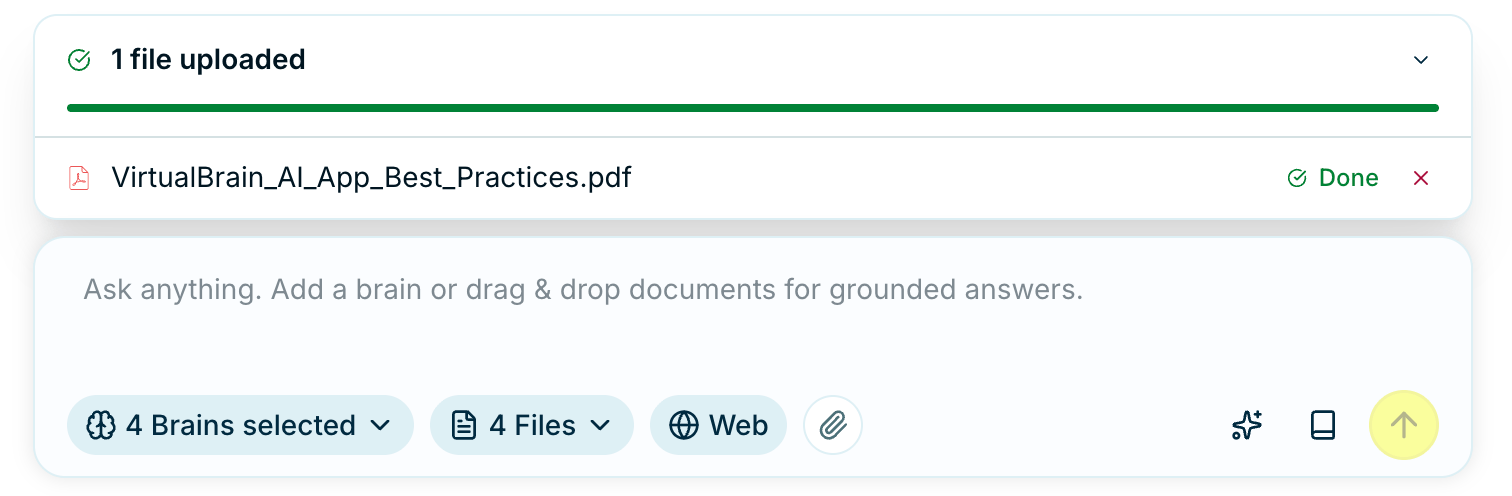
The chat input bar: choose Brains, toggle the web, attach a file, and ask.
1
Open Chats
Click Chats in the top menu
2
Select your Brain
Choose the Brain you want to query from the dropdown
3
Ask a specific question
Type a question about your documents
Example queries
Step 3: Review sourced answers
Every answer includes citations. Click any citation to:- See the exact source passage
- Open the original document
- Verify the AI’s interpretation
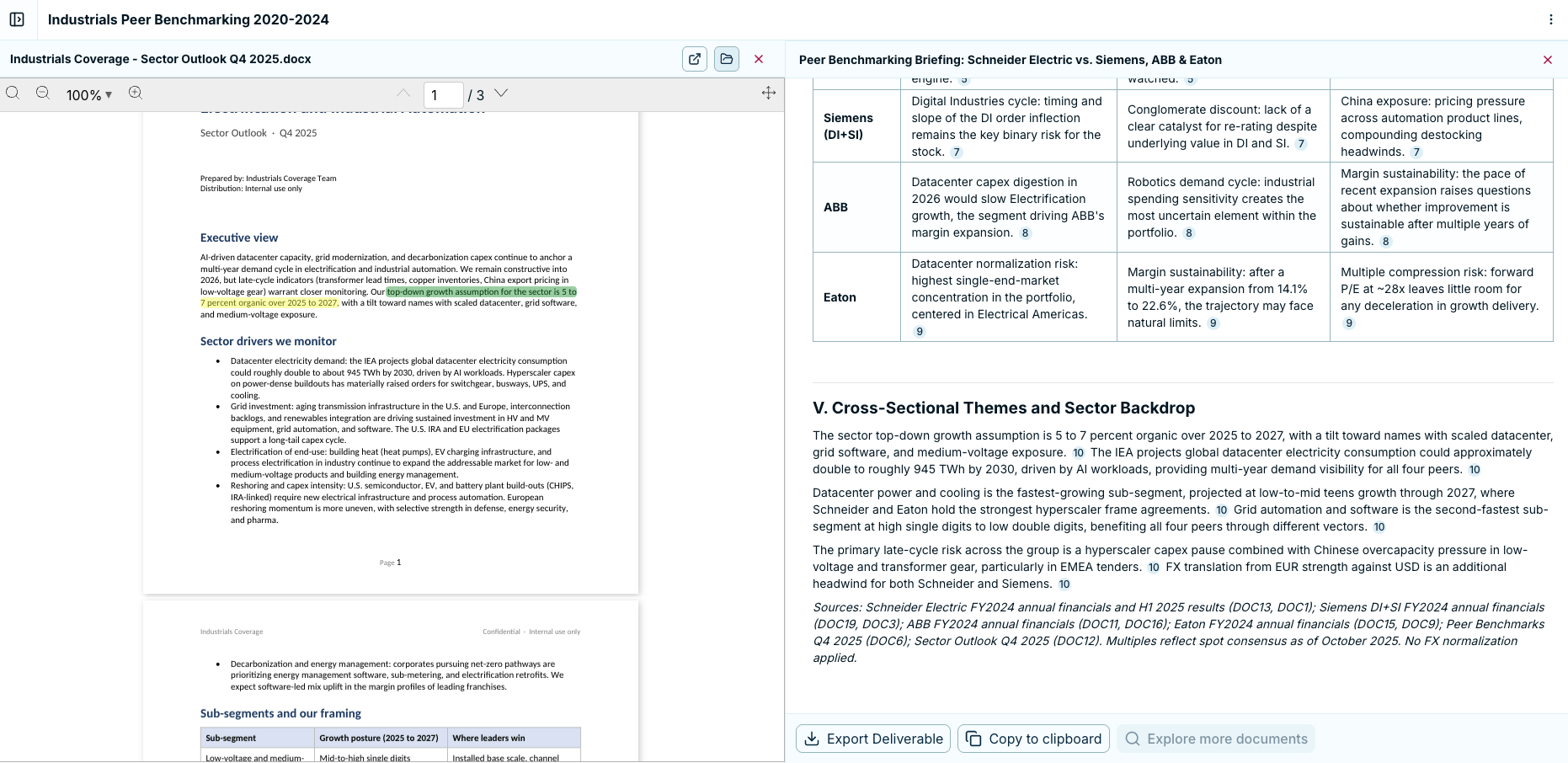
Click a citation and the source document opens beside the answer, with the cited passage highlighted.
Next steps
Run Your First App
Run automated workflows like due diligence analysis
Ask Better Questions
Learn how to write effective queries
Organize by Engagement
Best practices for Brain organization
Connect Your Cloud Storage
Sync documents from OneDrive, SharePoint, Google Drive or Dropbox