

Set up teams and users
1
Create teams
Add Team creates a team; assign members and permissions. Group people the way work is actually shared: a team should mirror who needs access to the same Brains and Apps.
2
Invite colleagues
Invite User brings colleagues on board.
3
Track the workspace
The user list shows totals at a glance (active users, invited users, and distinct teams) and lets you search and filter by team or status.
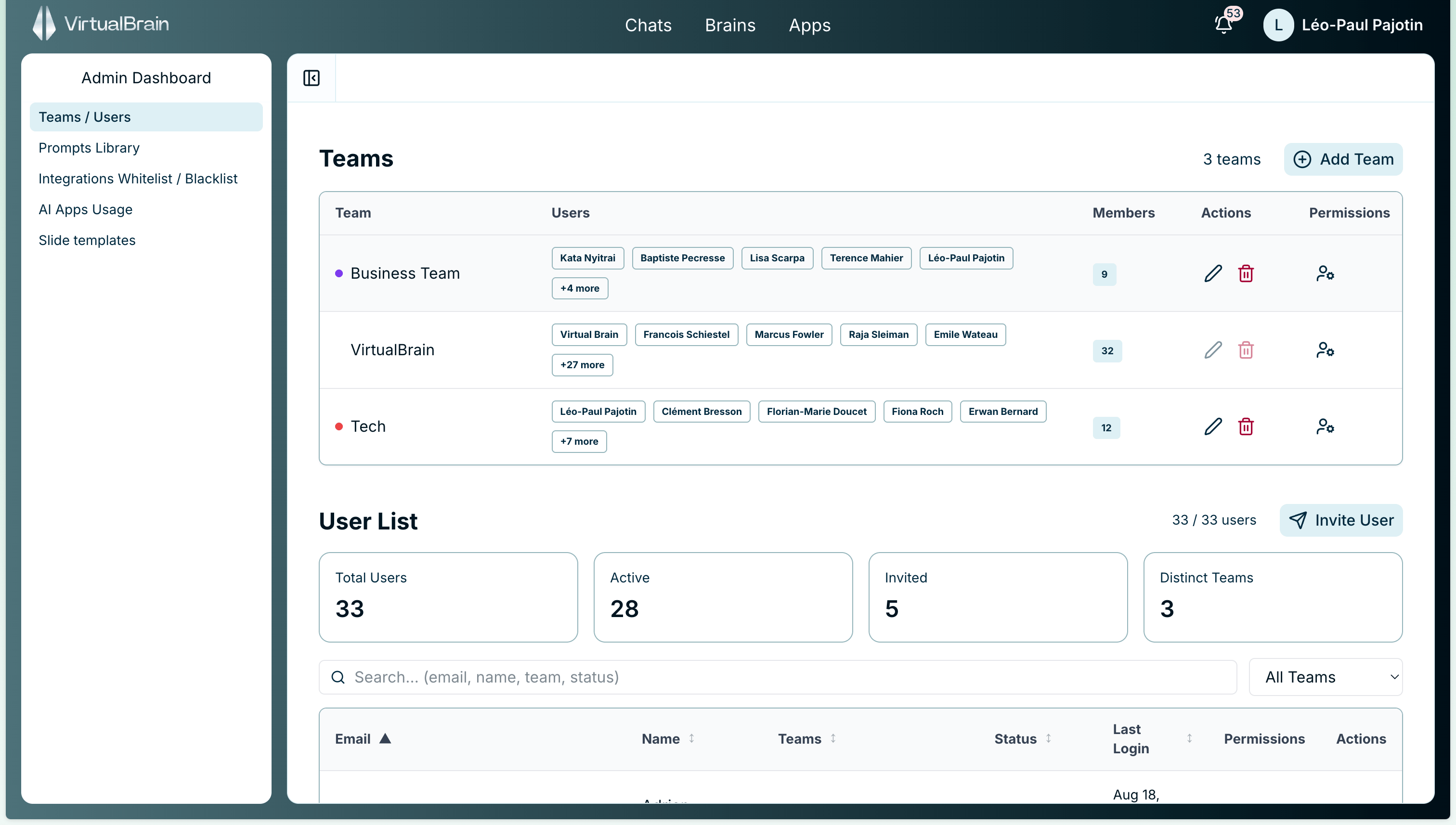
Teams & Users: create teams, invite users, and see workspace totals at a glance
Sharing a Brain or App with a team is read-only: team members can use the shared work, not modify it.
Related
Sharing Brains
How Brains reach the teams you define here.
Sharing Apps
How Apps reach the rest of the firm through teams.