

Why publish a Brain
A chatbot extends a Brain’s knowledge to people who work outside VirtualBrain: a practice-area FAQ on the intranet, a client-facing assistant on your site, or a programmatic endpoint for your own tools. You curate the documents; the chatbot answers from them.Configure your chatbot
You configure a chatbot across four tabs.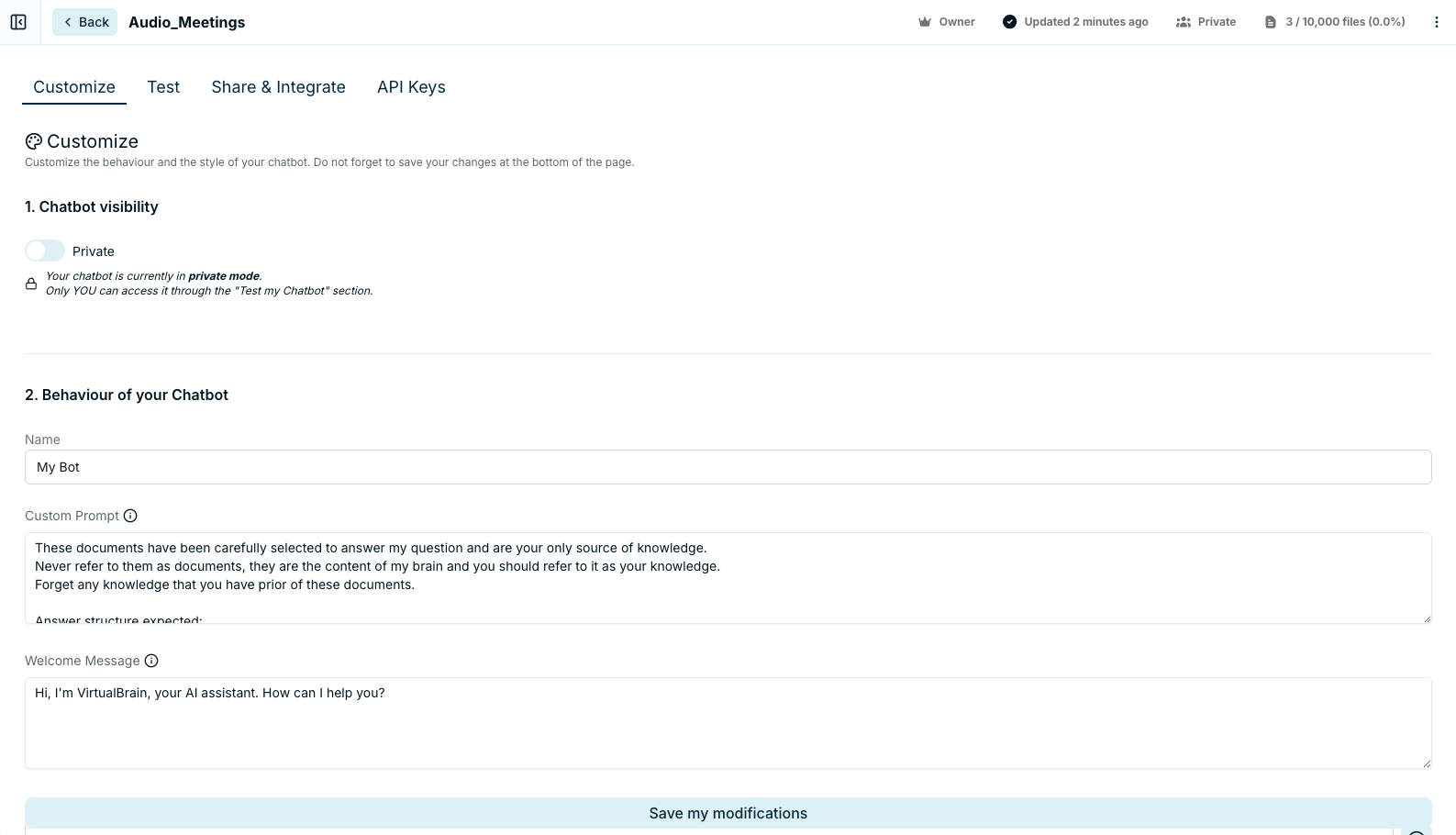
The chatbot configuration view with its Customize, Test, Share & Integrate, and API Keys tabs.
Customize
Set the chatbot’s visibility, Private or Public, then shape its behavior and look:- Behavior: a name, a custom prompt, a welcome message, up to three initial questions, the length of its answers (Small, Medium, or Large), and whether it shows sources and suggested prompts.
- Style: profile picture, logo, background color, and a widget style of Popup, Chat Bubble, or Sidebar.
Test
Preview the chatbot before publishing. The preview link lasts two hours, long enough to circulate it internally for a quick review before going live.Share & Integrate
Once the chatbot is Public, share it three ways:API Keys
Generate an API key for programmatic access, with full API documentation available in Swagger.Turn deliverables into a client-facing chatbot
A chatbot doesn’t have to sit on raw source files. Save the deliverables you produce into a dedicated Brain and publish that, so your clients get an assistant that answers from your finished, reviewed work:Best practices
Keep the backing Brain tightly scoped: the chatbot can only be as accurate as the documents behind it, and a focused Brain answers better than a sprawling one. Use the custom prompt and initial questions to steer visitors toward the topics the Brain actually covers, and keep “show sources” on when traceability matters to your audience.Related
- Sharing Brains: for collaboration with colleagues inside VirtualBrain
- Organizing Documents: verify the Brain’s contents before publishing
- Creating Brains: build the knowledge base behind the chatbot