

Start a chat
1
Open Chats and click New chat
Click New chat to begin. Your past conversations are listed in the sidebar, grouped by week and month.
2
Choose what to ground the answer in
In the input bar, use Choose brain(s) to query to pick one or more Brains, toggle Web on to also search the web, and use the paperclip to attach a one-off file just for this question.
3
Type your question and send
Ask in natural language. Not sure how to phrase it? Click Enhance prompt and VirtualBrain rewrites your prompt into a sharper, more specific question.
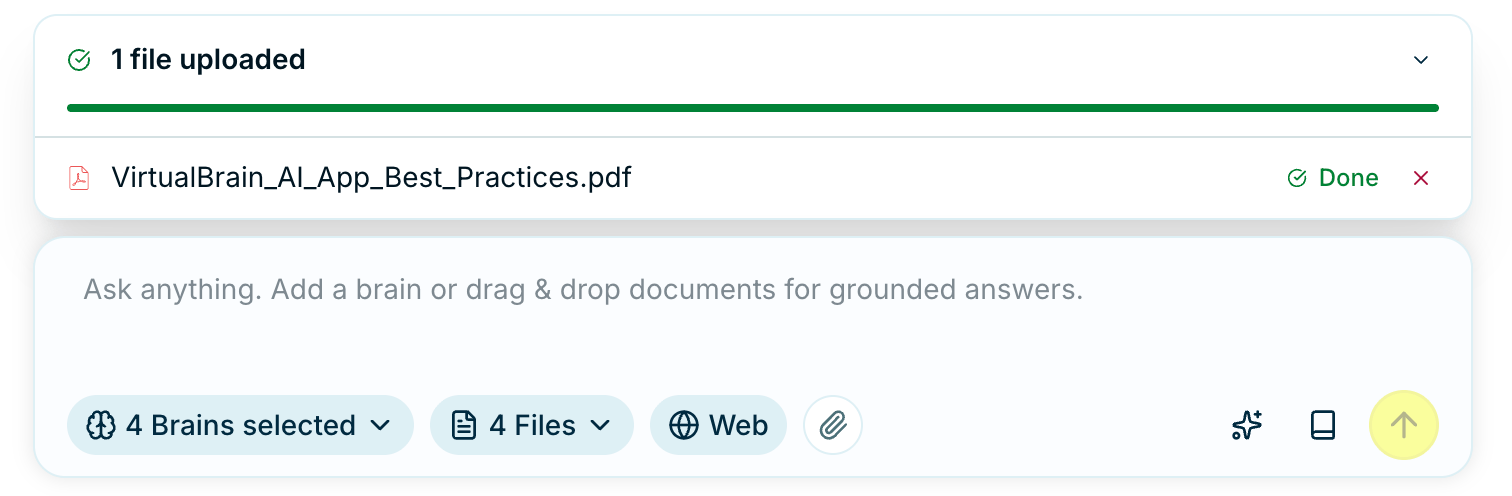
The chat input bar: choose Brains, toggle Web, attach a file, and enhance your prompt
To query several Brains at once (say, a data room alongside your sector research), select more than one in Choose brain(s) to query. Cross-Brain questions need nothing else.
Ask better questions
Specific questions get specific, well-sourced answers:What the answer draws on
You decide what the retriever works from, and each method behaves differently:
These combine. Drag in files and query a Brain at the same time, and both the attachments and the Brain’s relevant documents feed the answer.
What carries across turns
Each question arrives with what came before it, which is why “make that shorter” or “now compare it to last year” works without you restating anything. Three things travel with it.
The running summary is rewritten after every exchange rather than accumulating, so a figure you’ve since corrected or a direction you’ve abandoned drops out rather than shaping later answers.
Follow up on a deliverable
Open a deliverable in the side panel and the input bar shows Follow-up question on, naming the document. Anything you ask next is answered against it, so you can request an executive summary of the analysis beside you without re-describing what it contains. Click the × on the pill to ask an unrelated question instead.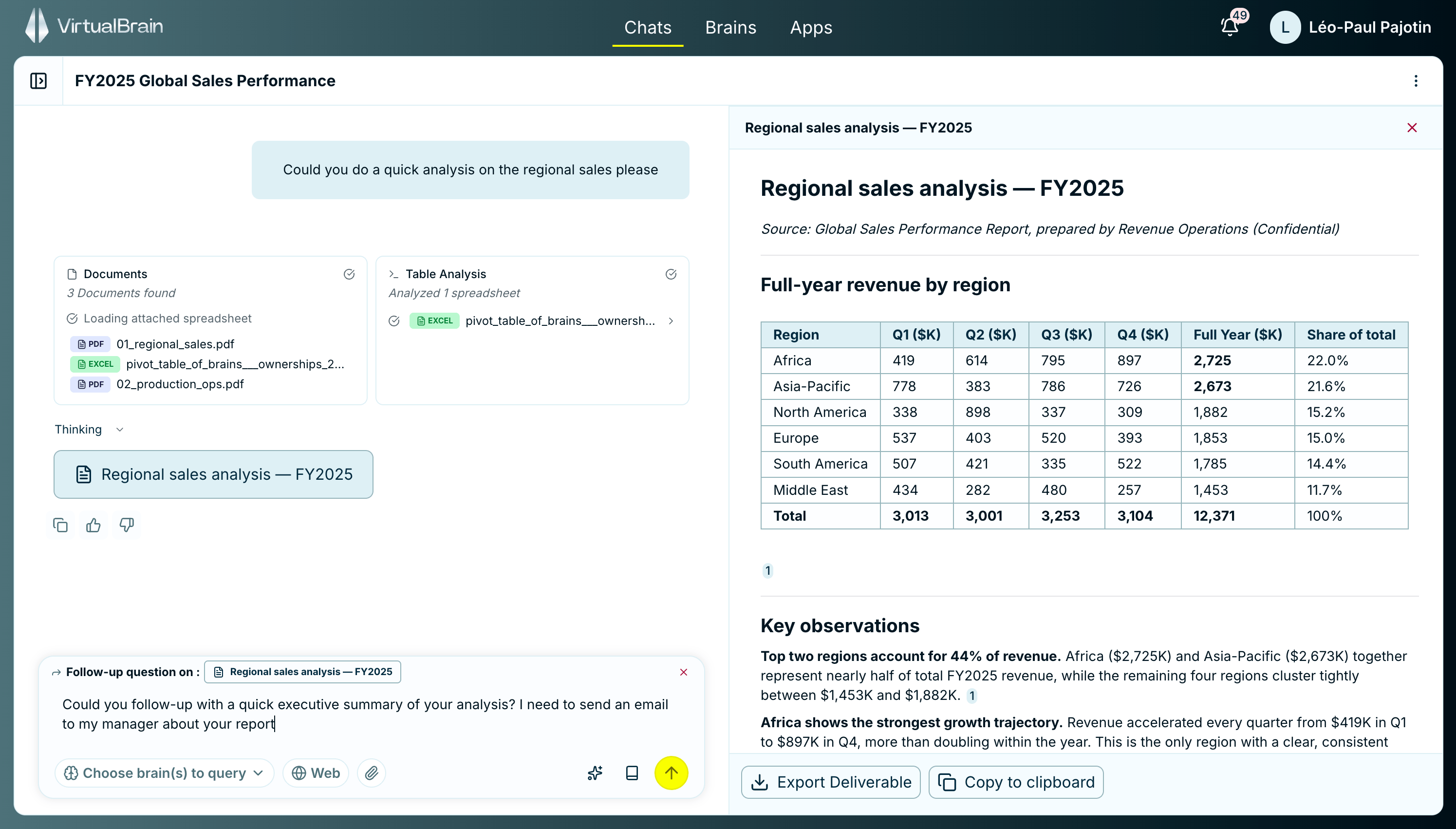
With a deliverable open, the input bar marks your next question as a follow-up on it.
Prompt for precision
- Be specific: Name the metric, the period, the document. “EBITDA margin trend 2021 to 2023” beats “tell me about performance”.
- One question at a time: Ask, verify, then follow up. That’s easier to check, and to trust, than a single sprawling request.
- Enhance your prompt: When a prompt isn’t landing, let VirtualBrain sharpen it for you rather than guessing at phrasing.
- Turn on Web when you need it: Toggle Web search for market data and external context; leave it off to stay strictly within your documents.