

Why per-Brain sharing matters
Sharing is controlled per-Brain, so access maps to how your work is actually structured: the deal team sees the deal room, the coverage group sees the sector library, and nothing leaks between them. You stay in command of who sees what, engagement by engagement.Share a Brain
1
Open the Brain and choose to share it
The share action sits in the Brain’s header.
2
Add members and teams
Type a colleague’s name under Add members, or add a whole Team. The owner is marked with a crown.
3
Set the access level
Grant a colleague Full access, or read-only so they can query the Brain without changing its contents. A team is always read-only.
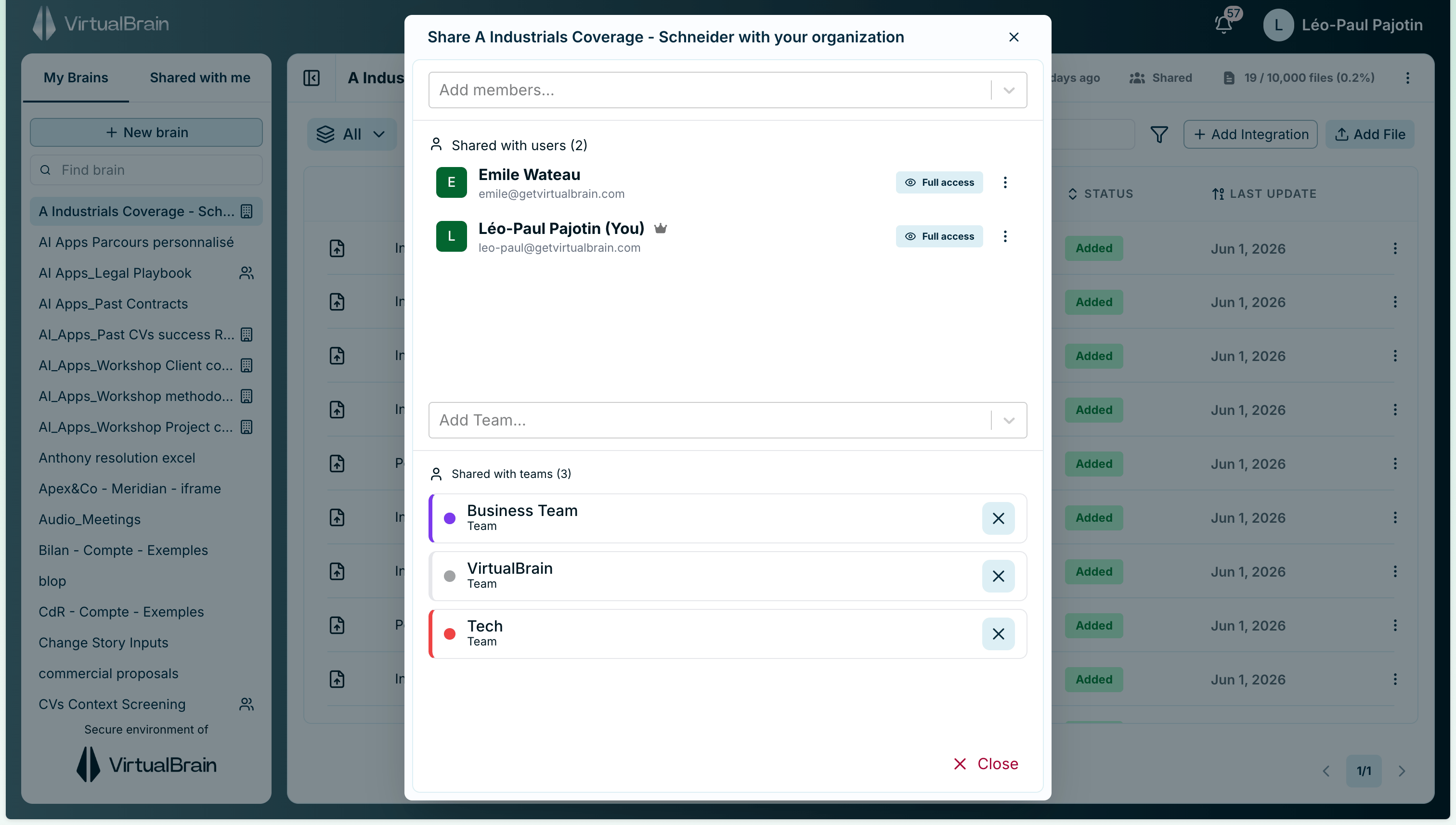
The sharing dialog: add members or teams and set each access level. The owner is marked with a crown.
Access levels
A Brain has one owner and any number of people it’s shared with, at one of two levels. Here is who can do what:Owner vs. full access
Full access and the owner can do almost everything: add and remove documents, rename the Brain, share it, and delete it. The one thing reserved for the owner is transferring ownership. The owner is marked with a crown in the sharing dialog.Transfer ownership
When someone changes role or hands an engagement over, the owner can transfer the Brain to another member of the same organization. The new owner receives full access and becomes the crowned owner, and any connected cloud-storage integrations move to them so syncing keeps working. The previous owner keeps full access unless you remove them, so nothing breaks mid-transfer; remove them afterward if they should no longer reach the Brain.Best practices
Before sharing, give the Brain a description: colleagues without full access see only the title, owner, document count, and description, so a clear description is how they know what they’re looking at. Reserve Full access for the colleagues who maintain the Brain’s contents; everyone else queries just as well with read-only.Related
- Organizing Documents: descriptions, statistics, and document management
- Chatbots: share a Brain’s knowledge beyond VirtualBrain users
- Teams & Users: how teams are managed in the admin dashboard