

Why it matters
Research rarely lives only in your data room. Regulator notices, market commentary, and company pages all inform an engagement. Capturing them into the Brain means your answers can cite them, not just your uploaded files.Add a web page by URL
Open the Web Content view of the Brain, paste the URL (an article, blog post, web page, or YouTube video), and click Load web content. The page is fetched, processed, and ready to query.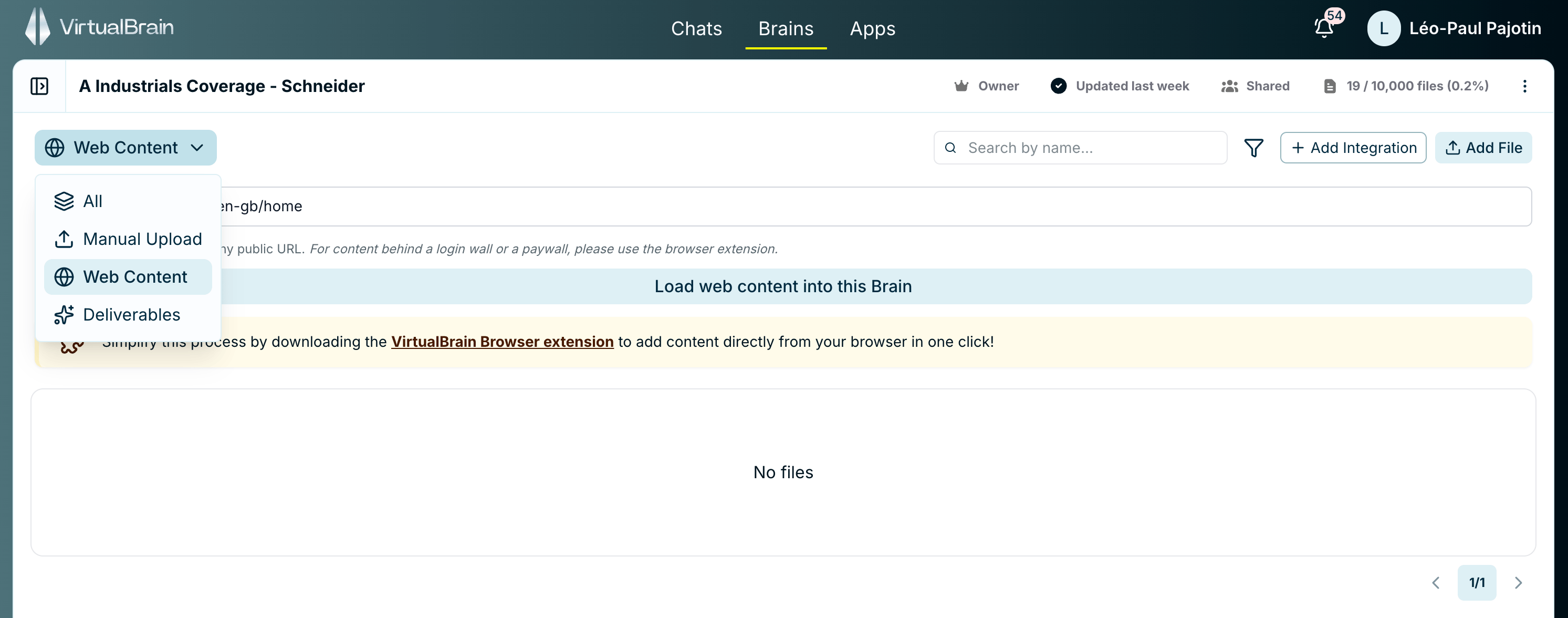
The Web Content view: paste a URL and click Load web content.
VirtualBrain captures only the page you give it, not the whole site. Share a specific page and you get that page’s content; share a homepage and you get the homepage alone, not every page linked from it.
Update or manage a web source
Each web source has its own menu: Navigate to source, View processed content, Force an update, and Delete web source. Force an update re-fetches the page, but it only works for content you added by URL, not for pages captured through the browser extension.The browser extension
The VirtualBrain browser extension brings the platform to wherever you research. When you find a relevant article, regulator notice, or market page, add it to a Brain in a couple of clicks. The extension is the way to capture content that sits behind a login or a paywall, the pages the URL method can’t reach.Install it
1
Open the extension listing
Use the link provided by your VirtualBrain administrator, or find the VirtualBrain extension in the Chrome Web Store.
2
Add it to your browser
Confirm the install; a VirtualBrain icon appears in your toolbar.
3
Sign in
Open the extension and sign in with the same credentials you use for VirtualBrain.
You can also download the extension from the link on the Web Content page of any Brain.
Capture a page
1
Navigate to a page worth keeping
Any article or public web page you’d want to cite later.
2
Open the extension and choose a destination Brain
Click the toolbar icon and pick the Brain to add the page to.
3
Capture
The page content is added to that Brain, where it’s processed and ready to query.
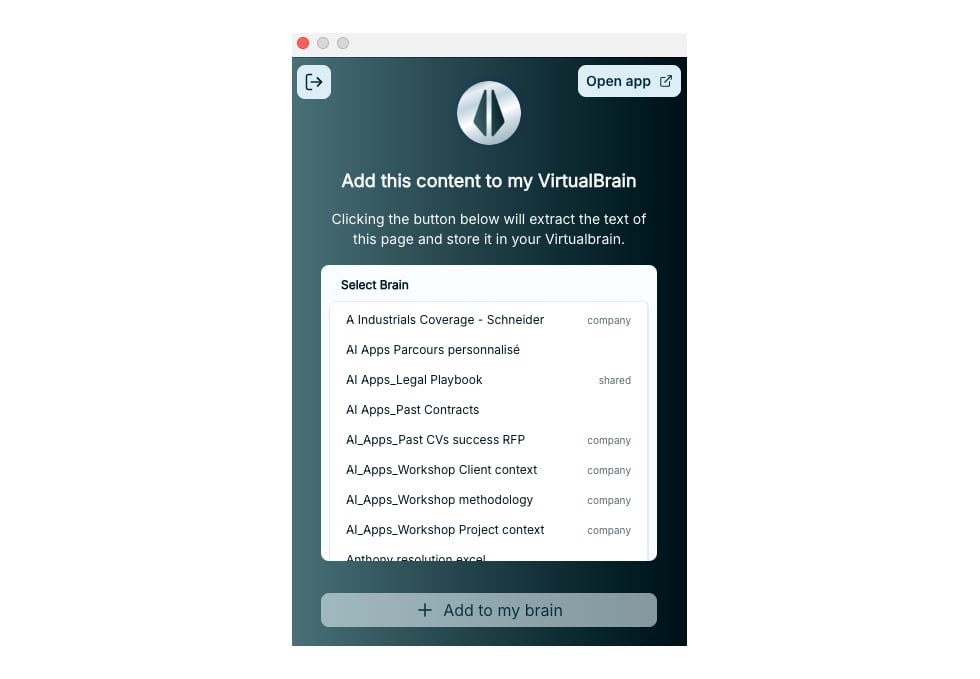
The extension popup: pick a destination Brain and capture the current page.
Best practices
Capture the specific pages you’ll cite rather than site homepages. For sources that change over time, prefer adding by URL so you can run Force an update later; extension captures are point-in-time snapshots.Related
- Creating Brains: all four ways to add content
- Organizing Documents: confirm captured pages processed correctly
- Cloud Storage Connectors: for documents in SharePoint, OneDrive, Google Drive, or Dropbox